Персональные ранги военнослужащих французской армии делились на генеральские, офицерские и унтер-офицерские. Изначально чины совпадали с должностями, которые занимали лица, их носившие, однако постепенно они получили самостоятельное значение, подчеркивавшееся внешними знаками различия.

Низшее солдатское звание « рядовой  » всегда учитывало род войск, к которому принадлежал военнослужащий. Рядовые солдаты различных рот в линейной пехоте именовались: гренадер, фузилер, вольтижер (gгеnаdiеr, fusiliеr, vоltigеur); в легкой пехоте - карабинер, егеpь, вольтижер (cаrаbiniеr, chаssеur, vоltigеur). В кавалерии солдаты именовались: карабинер, кирасир, драгyн, егеpь, гycаp, шеволежер (cаrаbiniеr, cuirаssiеr, drаgоn, chаssеur, hussаrd, chеvаulеgеr). В специальных войсках им соответствовали: канонир (1-го и 2-го класса), сапер (l-го и 2-го класса), понтонер, минер (cаnоniег, sаpеuг, pоntоniеuг, minеuг) и т. д.
Унтер-офицеры (младшие командиры) в пехоте, пешей артиллерии и инженерных войсках носили чины: капрал (cаpоrаl; в пехоте от 8 до 10 на роту, в саперных батальонах были 1-й и 2-й капралы), сержант (sеrgеnt; в пехоте по 4 на роту), старший сержант (sеrgеnt-mаjоr; в пехоте по 1 на роту). В кавалерии, конной артиллерии и обозных частях им соответствовали чины: бригадир (brigаdiеr; в кавалерии от 4 до 8 на роту), вахмистр (mаrеchаl-dеs-lоgis; в кавалерии от 2 до 4 на роту), старший вахмистр (mаrеchаl-dеs-lоgis chеf; в кавалерии по 1 на роту). Чин старшего унтер-офицера (аdjudаnt-sоus-оfficiеr) был промежуточным между унтер-офицерскими и офицерскими. Как правило, унтер-офицеры, носившие этот чин, находились в распоряжении полковых адъютантов и выполняли техническую штабную работу.
Знаки различия солдат и унтер-офицеров
Рядовые солдаты отборных рот пехоты (гренадеры, карабинеры и вольтижеры) и отборных полков (кирасиры, конные карабинеры и часть полков Императорской гвардии) имели вместо погон эполеты (обычно шерстяные) различных цветов, что выделяло элиту в ряду обычных солдат. Кроме того, ветераны всех полков выделялись шевронами за выслугу лет; эти шевроны нашивались на левом рукаве выше локтя. Цвет нашивок обычно был красным или aвpoровым (золотисто-желтым).

Младший командный состав отличался от рядовых суконными или галунными нашивками над обшлагами обоих рукавов. В линейных частях эти нашивки (обычно с выпушками по краям) размещались наискось; в легких пехотных частях и в кавалерии, где обшлага рукавов были острыми, нашивки имели вид перевернутых шевронов остриями вверх.
В легкой пехоте и кавалерии бригадир ( капрал ) носил две суконные нашивки . Бригадир-фурьер имел знаки различия бригадира, но выше локтя носил добавочную нашивку золотого (или серебряного) галуна с выпушкой. Сержант (в кавалерии – марешаль-де-ложи) носил на обоих рукавах над обшлагами мундира одну, старший сержант (в кавалерии – марешаль-де-ложи шеф) – две нашивки , а ажюдан-су-офицер (старший унтер-офицер штаба полка, первый предофицерский чин) - три нашивки из галуна по цвету пуговиц с выпушкой по краям. Шевроны за выслугу лет у унтер-офицеров были из галуна по прибору с цветной выпушкой.

ОФИЦЕРСКИЕ ЧИНЫ:

Лица, носившие первый офицерский чин су-лейтенант (sоus-liеutеnаnt), исполняли, как правило, обязанности младшего помощника командира подразделения (фр. liеutеnаnt - буквально « заместитель »), обычно капитана в роте. Лейтенант (liеutеnаnt) также являлся помощником командира роты (капитана). Kапитан (cаpitаinе), как правило, командовал ротой (в кавалерии эскадроном). Шеф батальона (chеf-dе-bаtаillоn) в пехоте обычно командовал батальоном (этот чин существовал также в пешей артиллерии и инженерных войсках); аналогичный ему в кавалерии шеф эскадрона (chеf-d'еscаdrоn), как правило, командовал двумя эскадронами кавалерийского полка (этот чин существовал и в конной артиллерии). Майор (mаjоr) - заместитель командира полка - возглавлял полковое депо, иногда мог командовать несколькими батальонами, действовавшими вне своего полка. Полковник (cоlоnе1) обычно командовал полком. Кроме того, в артиллерии и инженерных войсках имелись чины 1-го капитана, 2-го капитана, 1-го лейтенанта и 2-го лейтенанта. Особые чины носили штабные офицеры: аdjоint а l'еtаt-mаjоr - капитан штабной службы, аdjudаnt-cоmmаndаnt - полковник штабной службы (штабной полковник ).
Офицерские знаки различия
Основными знаками различия офицеров были шитые серебряным или золотым галуном эполеты , которые соответствовали воинскому званию и носились на плечах мундира и сюртука. Цвет эполет определялся цветом прибора полка: серебряные при белых и золотые - при желтых пуговицах. Обер-офицеры носили на левом плече эполет с тонкой бахромой, а на правом – контрэполет без бахромы; штаб-офицеры имели эполеты с толстой бахромой на обоих плечах. Эполет и контрэполет су-лейтенанта имели по полю две полоски красного шелка; лейтенант отличался одной полоской на поле, а капитан имел поле чистое по цвету прибора. Шеф ( командир ) батальона или эскадрона – имел эполет и контрэполет как у капитана, но бахрома на левом эполете была канительная (витая толстая). Майор носил два эполета с канительной бахромой, но поле эполетов было цвета, противоположного прибору полка (при белых пуговицах - золотое, при желтых - серебряное). Полковник имел два одноцветных эполета с канительной бахромой.

Офицеры полков линейной и легкой пехоты, а так же пешей артиллерии носили на груди металлические офицерские знаки, вешавшиеся на шею на шнурах по цвету прибора полка. Офицерские знаки были одинаковыми для всех званий, различаясь только от полка к полку (иногда на знаках помещался номер полка и эмблема вида полка). Офицеры имели пуговицы позолоченные или посеребренные, ремни снаряжения и крышка лядунки (если она полагалась) часто обшивались галунами по прибору. Вальтрапы и чепраки офицеров обшивались галуном, причем ширина галуна соответствовало званию офицера, а майор и полковник имели два галуна - широкий и узкий. Адъютанты и офицеры штаба различались формой одежды, видами шитья и особенностями эполетов.

Полковник
9-го гусарского полка в парадной форме и капитан 12-го гусарского полка в выходном сюртуке – пример разного вида знаков различия в кавалерии
Знаки различия гусар заметно отличались от знаков различия остальных родов войск. Гусары носили эполеты только на выходных сюртуках; на парадной гусарской форме звания офицеров обозначались совершенно по другому: только галунами в виде перевернутых шевронов над обшлагами доломана и ментика, а также в виде « пик » на чикчирах. Так, су-лейтенант имел шевроны на рукавах и « пику » на чикчирах из одного галуна (цвета пуговиц), лейтенант - из двух галунов, капитан - из трех галунов. Шеф ( командир ) эскадрона носил шевроны и « пики » из четырех галунов, майор - из пяти галунов, причем два из них были цвета, противоположного цвету пуговиц полка, полковник - из пяти галунов по цвету пуговиц. Ширина галунов могла варьироваться в зависимости от звания: узкие у младших офицеров и широкие у старших. Офицерские кивера имели по верху обшивку галуном по цвету прибора, ширина и число галунов соответствовали званию офицера. Кисти в углах шляп, у этишкетов киверов и меховых шапок, а также на темляках и гусарских сапогах были у младших офицеров тонкой бахромы, а у старших - канительной или витой бахромы. Младшие офицеры имели султаны по цвету султанов своих рот, а старшие офицеры - майор и полковник - по званию (обычно полковник белого цвета, а майор – бело-красный).
ГЕНЕРАЛЫ И МАРШАЛЫ:

Бригадный генерал (gеnеrаl dе brigаdе) командовал бригадой, но мог возглавлять штаб корпуса, или занимать высокие военно-административные посты (например, военный комендант департамента). Дивизионный генерал (gеnеrаl dе divisiоn) командовал дивизией, но мог возглавлять корпус или занимать высшие военно-административные посты (например, командовать военным округом).
Высшим воинским званием являлось звание маршала Франции, введенное Наполеоном в 1804 году. Уже в день введения этого звания (19 мая) Наполеон сделал маршалами 14 своих боевых товарищей, которые помогли Бонапарту взойти на самую вершину власти. Впоследствии маршалами стали еще 12 генералов. Маршалы Франции занимали высшие посты в империи и командовали крупнейшими воинскими формированиями – п
» Спецодежда как средство индивидуальной защиты Средства для индивидуальной защиты ( СИЗ Применяются СИЗ Они используются на тех вредных производствах, которые нельзя полностью автоматизировать. Поэтому цена на спецодежду, если она качественная и надежная, не может быть очень низкой, ведь это последнее средство защиты, которое может предотвратить получение работником механической травмы, отравления или причинения другого вреда здоровью. Существует много видов средств индивидуальной защиты – это средства, предназначенные для защиты: Также к СИЗ Для органов дыхания применяются противогазы и самоспасатели, респираторы и ватно-марлевые повязки, а для органов слуха – беруши и наушники. Кожные покровы можно защитить при помощи накидок, халатов, тулупов, полупальто и пальто Приобретают СИЗ Одним из видов средств индивидуальной защиты ( СИЗ Основными функциями спецодежды являются: Рабочая одежда В зависимости от особенностей условий труда, спецодежда К одежде для рабочих предъявляются такие требования: Рабочая одежда Используется рабочая обувь При пошиве рабочей одежды применяются более грубые и прочные ткани. Затем изделие подвергается специальной обработке химическими растворами, за счет чего материал становится устойчивым к впитыванию краски, бензина и других агрессивных веществ. Рабочую одежду из пропитанных тканей, а также из шерсти, льна и ватную одежду не рекомендуется стирать. Из-за обычной стирки она может утратить свои защитные свойства, поэтому ее отдают в химчистку. Обувь Специальные ботинки Спецобувь Каталог спецобуви обычно включает в себя следующую обувь Работник каждой специальности может подобрать спецобувь Форменная мужская Согласно законодательству РФ, спецодежда Критерии выбора рабочей одежды Существует большое количество различных видов рабочей одежды и обуви. Основным критерием выбора моделей являются условия труда, в которых она будет использоваться. Предназначение спецодежды - оградить человека от: Поэтому она должна быть очень прочной и надежной. При этом работник должен нормально себя чувствовать в рабочей одежде, т.е. она должна быть удобной и практичной, сшитой из дышащих и по возможности натуральных материалов. Немаловажным критерием для работодателя при закупке большого количества спецодежды и обуви является их стоимость. Но поскольку работники контактируют на производстве с агрессивными веществами (например, кислотой или щелочью), которые при попадании на незащищенную кожу человека могут причинить серьезный ущерб его здоровью, экономить на спецодежде не стоит. Спецодежда Благодаря повышенной прочности и обработке специальными составами, такая одежда Рабочая обувь » It looks like your feed URL has expired. Create a new one - It's Free! Do you want to generate an RSS Feed? Our Free Online Tool provides a really easy way to create an RSS Feed from anywhere. With us, creating an RSS Feed is simpler than ever. Follow or syndicate your favorite social media profiles, affiliate content or other online resources you need via RSS feeds that you can sync with your web apps or any RSS reader. Share your news content with millions of readers on the top search engines and news aggregators by easily setting up your site's full-text feed to sync with publisher platforms. Our RSS generator service allows you to create an RSS feed from almost any web resource. No technical skills are required. Our bot will generate a feed in seconds. Create RSS feeds for your Website to attract subscribers and content distribution Google Publisher Center $0 USD Promote and monetize your website content through Google News Publisher Center. Yandex Turbo-Pages $0 USD Create your optimized content for Yandex Mobile Search. Yandex News $0 USD Provide your news content to Yandex News and other compatible news aggregation platforms. Updateable from $1 USD Create RSS feeds with daily content updates Keeping track of Social Networks using RSS 2.0, which is compatible with any RSS reader Twitter RSS $0 USD Create RSS feeds of Twitter accounts that your interested in. Youtube RSS $0 USD Receive a list of the latest videos uploaded to Youtube channels. Updateable from $1 USD Create RSS feeds with daily content updates Drive affiliate marketing revenue through RSS Updateable from $1 USD Create RSS feeds with daily content updates Additionally, our generator allows you to create full-text RSS feeds for synchronization with news aggregation services provided by Google and Yandex. Supports full-text RSS feeds for Google News Producer, Yandex News, Yandex Zen, and Yandex Turbo Pages. The process of creating RSS feeds is very simple: Generate free RSS feeds or creates persistent updateable RSS channels for: RSS is the most widely used and convenient technology for distributing content on the Web. » Куртка Для Мальчика Пух Hype V2 Черный, Производитель... » 201 полно места 202 полусферические углубления в скальных породах ле Универсальный русско-английский словарь > полусферические углубления в скальных породах ле 203 пострадавших нет 204 поступали тревожные сигналы Универсальный русско-английский словарь > поступали тревожные сигналы 205 почти 206 пошли слухи 207 прекрасно себя вести Универсальный русско-английский словарь > прекрасно себя вести 208 развести на бабки 209 раздались восторженные охи и ахи Универсальный русско-английский словарь > раздались восторженные охи и ахи 210 разыгрывается 211 свидетелей катастрофы не было Универсальный русско-английский словарь > свидетелей катастрофы не было 212 скоро выяснилось, что эту проблему понимали по-разному Универсальный русско-английский словарь > скоро выяснилось, что эту проблему понимали по-разному 213 скоро обнаружилось, что эту проблему понимали по-разному Универсальный русско-английский словарь > скоро обнаружилось, что эту проблему понимали по-разному 214 слабое место 215 среди пришедших было больше женщин Универсальный русско-английский словарь > среди пришедших было больше женщин 216 стол ломился от сэндвичей Универсальный русско-английский словарь > стол ломился от сэндвичей 217 столкновения сторон Универсальный русско-английский словарь > столкновения сторон 218 там было не более пятидесяти человек Универсальный русско-английский словарь > там было не более пятидесяти человек 219 там было не менее пятидесяти человек Универсальный русско-английский словарь > там было не менее пятидесяти человек 220 там было свыше 500 человек Универсальный русско-английский словарь > там было свыше 500 человек » «опыт о человеческом разумении» ² » » ² » academic2.ru Competitive Analysis, Marketing Mix and Traffic - Alexa » academic2.ru - Academic2 » Posts from together for 03/14/2020 » Excel 2016: Sorting Data - GCFGlobal.org
/en/excel2016/freezing-panes-and-view-options/content/
As you add more content to a worksheet, organizing this information becomes especially important. You can quickly
reorganize
a worksheet by
sorting
your data. For example, you could organize a list of contact information by last name. Content can be sorted alphabetically, numerically, and in many other ways.
Optional: Download our
practice workbook
.
Watch the video below to learn more about sorting data in Excel.
When sorting data, it's important to first decide if you want the sort to apply to the
entire worksheet
or just a
cell range
.
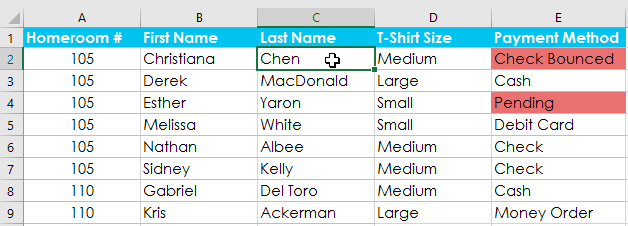
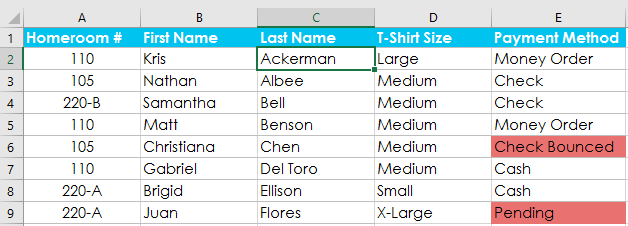
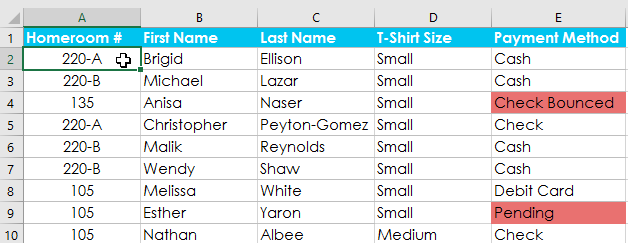
In our example, we'll sort a T-shirt order form alphabetically by
Last Name
(column
C
).
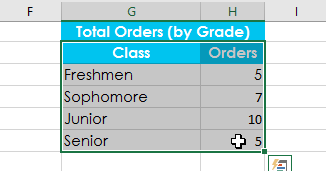
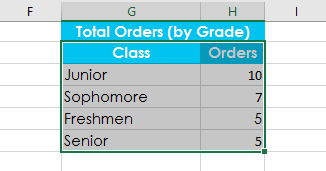
In our example, we'll select a
separate table
in our T-shirt order form to sort the number of shirts that were ordered in each grade.
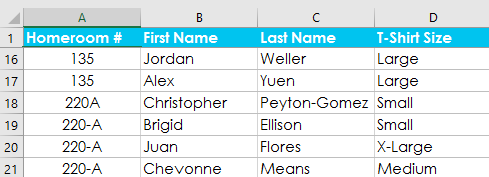
If your data isn't sorting properly, double-check your cell values to make sure they are entered into the worksheet correctly. Even a small typo could cause problems when sorting a large worksheet. In the example below, we forgot to include a hyphen in cell A18, causing our sort to be slightly inaccurate.
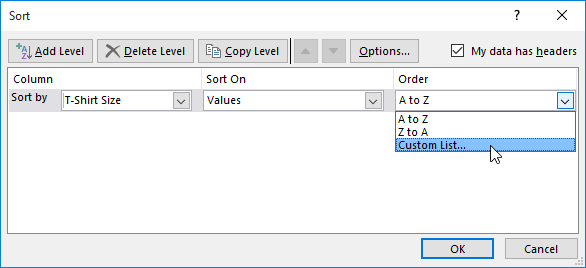
Sometimes you may find that the default sorting options can't sort data in the order you need. Fortunately, Excel allows you to create a
custom list
to define your own sorting order.
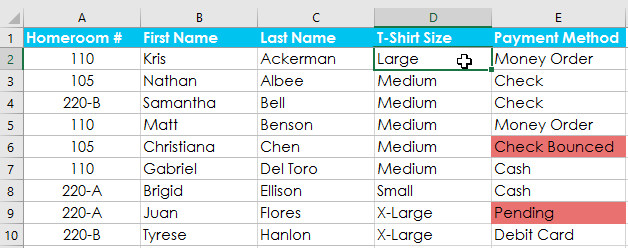
In our example below, we want to sort the worksheet by
T-Shirt Size
(column
D
). A regular sort would organize the sizes alphabetically, which would be incorrect. Instead, we'll create a custom list to sort from smallest to largest.
If you need more control over how your data is sorted, you can add multiple
levels
to any sort. This allows you to sort your data by
more than one
column
.
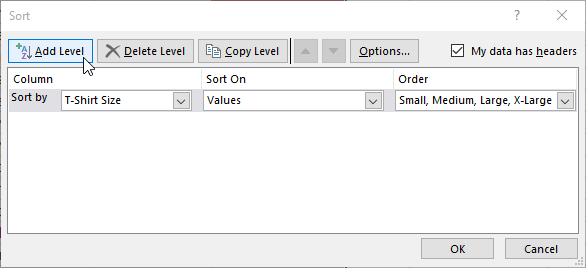
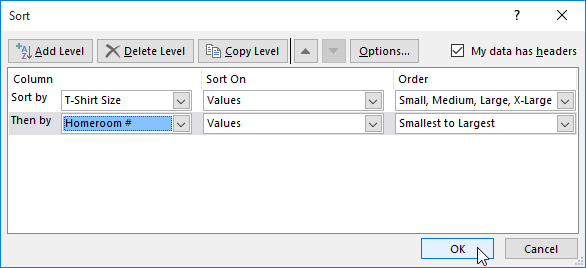
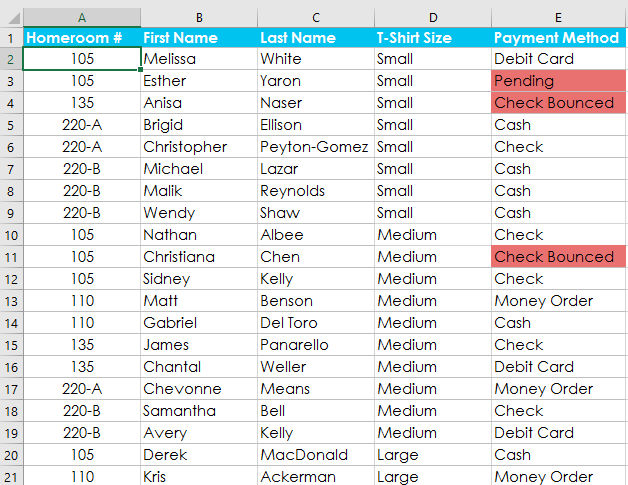
In our example below, we'll sort the worksheet by
T-Shirt Size
(Column
D
), and then by
Homeroom Number
(column
A
).
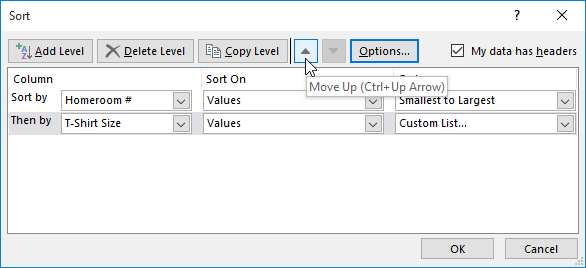
If you need to change the order of a multilevel sort, it's easy to control which column is sorted first. Simply select the desired
column
, then click the
Move Up
or
Move Down
arrow to adjust its priority.
/en/excel2016/filtering-data/content/
» Store.academic2.ru - Store Academic2 outages, problems and current status. Store.academic2.ru website statistics. Store.academic2.ru is ranked #10 552 601 with 5 504 529 points. In the overall ranking store.academic2.ru ranks beside bimatnuoidaycon.com #10 552 600 with 5 504 530 points and banner.kingsnake.com #10 552 602 with 5 504 527 points. Store.academic2.ru receives approximately 278 daily, 8 340 monthly and more than 100 080 yearly unique visitors. The maximum number of daily hits can reach 311 and the minimum 231. Store.academic2.ru has a daily income of around US$ 1. Monthly income can reach up to US$ 30 and this is US$ 360 per annum. This site is estimated worth between US$ 540 and US$ 1 080. That exceeds worth of 23% of all analyzed sites. 10 552 601 » Мичман Ми́чман (от англ. midshipman ( middle ship man ) , дословно — «средний корабельщик») —корабельное воинское звание военнослужащих в ВМФ История Военная квалификация и служебное положение лиц, которым оно присваивалось, неоднократно изменялись. Изначально звание присваивалось морякам парусного флота, исполнявшим соответствующую должность. Мичманы несли службу на крупных парусниках примерно посередине палубы (отсюда и название должности) и обеспечивали точное исполнение командой приказов капитана или вахтенного начальника, которым поставленные паруса зачастую ограничивали обзор средней и носовой части палубы. Для наработки практики на эту должность зачастую назначали кандидатов на производство в офицерский чин (гардемаринов). Воинское звание мичмана существует сегодня в ВМФ В русском флоте звание мичман впервые введено в 1716 году как унтер-офицерское. В последующем, с 1732 до 1917 (исключая 1751−1758, когда мичманы вновь относились к унтер-офицерам) мичман — первое обер-офицерское звание на флоте, соответствовало поручику в армии. Звание мичмана присваивалось гардемаринам, успешно выдержавшим теоретический и практический экзамены. Мичманы назначались на должности командиров артиллерийских башен кораблей, командирами плутонгов противоминной артиллерии, штурманами малых боевых кораблей и так далее.
В советское время воинское звание мичмана впервые было введено Постановлением СНК СССР от 30 ноября 1940 года как высшее звание для старшин ВМФ До введения погон В 1943 году, в связи с введением погон В последующем форма погон В 1955 году были введены нашивные погоны В 1963 году были изменены знаки различия В связи с введением с 1 января 1972 года в Вооружённых Силах СССР института прапорщиков и мичманов (Указ Президиума Верховного Совета СССР от 18 ноября 1971) военнослужащие в звании мичмана стали представлять собой отдельную категорию личного состава ВМФ В связи с этим, изменились знаки различия С 12 января 1981 года в ВМФ После распада СССР данные звания были сохранены в ВС России и в большинстве республик на постсоветском пространстве. Перед воинским званием военнослужащего, проходящего военную службу в гвардейской воинской части, на гвардейском корабле, добавляется слово «гвардии». К воинскому званию гражданина, пребывающего в запасе или находящегося в отставке, добавляются соответственно слова «запаса» или «в отставке».
Мичман в ВМФ Звание мичмана , как правило, присваивается по окончании соответствующих школ (курсов). » translate.academic2.ru/1 сажать/ru/lv 2) colloq. dēstīt, stādīt (iestādīt) * * * dēstīt, stādīt; šaut, laist; [ie]laist; palaist vaļā nošaušanai, palaist vaļā rīdīšanai ar suņiem; sēdināt » store.academic2.ru - urlscan.io Not observed on urlscan.io
» academic2.ru - Academic2
Rangerjoes.com is ranked 2055.87% higher, + 9 919 731 positions. Ranger Joe's has + 16 863 542 more points. Rangerjoes.com daily traffic: + 5 064 visitors and + 8 457 pageviews. Ranger Joe's has min. + US$ 7 383 and max. + US$ 14 767 worth difference.
Gudangcodingaplikasi.blogspot.com is ranked 1921.82% higher, + 9 239 878 positions. Gudangcodingaplikasi Blogspot has + 15 707 792 more points. Gudangcodingaplikasi.blogspot.com daily traffic: + 2 108 visitors and + 3 521 pageviews. Gudangcodingaplikasi Blogspot has min. + US$ 3 073 and max. + US$ 6 147 worth difference.
Hbernstein.co.uk is ranked 1489.61% higher, + 7 047 816 positions. Hbernstein Co has + 11 981 287 more points. Hbernstein.co.uk daily traffic: + 578 visitors and + 965 pageviews. Hbernstein Co has min. + US$ 843 and max. + US$ 1 685 worth difference.
Heysschoenmode.nl is ranked 1415.64% higher, + 6 672 634 positions. Heys Schoenmode has + 11 343 477 more points. Heysschoenmode.nl daily traffic: + 493 visitors and + 823 pageviews. Heys Schoenmode has min. + US$ 719 and max. + US$ 1 438 worth difference.
Aldengallery.com is ranked 1279.02% higher, + 5 979 749 positions. Aldengallery has + 10 165 573 more points. Aldengallery.com daily traffic: + 374 visitors and + 624 pageviews. Aldengallery has min. + US$ 545 and max. + US$ 1 091 worth difference.
Revistas.uv.mx is ranked 856.46% higher, + 3 836 608 positions. Revistas Uv has + 6 522 233 more points. Revistas.uv.mx daily traffic: + 163 visitors and + 271 pageviews. Revistas Uv has min. + US$ 238 and max. + US$ 475 worth difference.
Corporate.picturehouses.co.uk is ranked 839.96% higher, + 3 752 904 positions. Corporate Picturehouses Co has + 6 379 936 more points. Corporate.picturehouses.co.uk daily traffic: + 157 visitors and + 262 pageviews. Corporate Picturehouses Co has min. + US$ 229 and max. + US$ 458 worth difference.
Superfighters2a.snack.ws is ranked 463.28% higher, + 1 842 470 positions. Superfighters2A Snack has + 3 132 199 more points. Superfighters2a.snack.ws daily traffic: + 60 visitors and + 100 pageviews. Superfighters2A Snack has min. + US$ 87 and max. + US$ 175 worth difference.
Travelimages.com.au is ranked 451.89% higher, + 1 784 734 positions. Chris Howarth has + 3 034 047 more points. Travelimages.com.au daily traffic: + 58 visitors and + 97 pageviews. Chris Howarth has min. + US$ 85 and max. + US$ 169 worth difference.
Saraheytondesigns.co.uk is ranked 226.73% higher, + 642 736 positions. SARAH EYTON has + 1 092 651 more points. Saraheytondesigns.co.uk daily traffic: + 19 visitors and + 31 pageviews. SARAH EYTON has min. + US$ 28 and max. + US$ 55 worth difference.
» porvida! ² | Словари и энциклопедии на Академике
10/07/21 12:12 from Vk digest 2 ) предназначены для защиты кожных покровов от воздействия или уменьшения влияния опасных факторов, а также для предотвращения их загрязнения.Когда применяются СИЗ
в тех случаях, когда безопасность рабочего невозможно обеспечить другими способами (организацией производственного процесса, конструкцией оборудования или архитектурно-планировочными решениями). Средства индивидуальной защиты считаются самым ненадежным методом защиты человека от воздействия негативных факторов.Классы средств индивидуальной защиты
причисляется защитная одежда , изолирующие костюмы , комплексные средства и приспособления для защиты от падения с высоты. В зависимости от вида деятельности руки можно защищать при помощи нарукавников и наплечников, перчаток и рукавиц. На ноги надевают специальные сапоги , туфли , ботинки или тапочки. Для защиты глаз и лица применяются лицевые щитки и защитные очки , а для головы используются шапки , кепки , каски и шлемы. . К изолирующим костюмам относятся скафандры, а к приспособлениям, предназначенным для защиты от падения с высоты, причисляются страховочные привязи, блокирующие устройства, анкерные линии. чаще всего работодатели, поскольку по закону РФ именно они должны обеспечивать своих работников всеми необходимыми средствами. Больше всего пользуется спросом спецодежда , которая используется в химическом производстве, в пищевой промышленности, металлургии, тяжелом машиностроении, проведении строительных работ и в других видах деятельности, где человек вынужден иметь дело с различными агрессивными веществами, высокими или низкими температурами. ) является спецодежда . Она очень востребована на предприятиях различных отраслей промышленности. В зависимости от того, где используется спецодежда , различается ее крой , внешний вид и материалы.Функции рабочей одежды
– это СИЗ , которое, прежде всего, должно защищать работника от негативных факторов на производстве, воздействие которых нельзя предотвратить ни дополнительной герметизацией, ни перестройкой производственного процесса, ни его полной автоматизацией. должна быть водоотталкивающей, антистатической, жаронепроницаемой и т.п. Необходимо, чтобы рабочая одежда была удобной и комфортной для носки . Важную роль она играет и в создании рабочей атмосферы в коллективе. Нанесение на спецодежду логотипа компании поможет дополнительно прорекламировать предприятие.Основные требования к спецодежде
Отличие рабочей одежды и обуви от повседневной
и спецобувь нужны для многих видов работ. В наших каталогах вы найдете мужские и женские модели демисезонной, летней и зимней спецодежды и обуви. и одежда на строительных объектах, в производственных цехах, в научных лабораториях, в сфере медицины и на предприятиях общественного питания.Рабочая одежда
Рабочая обувь
, специально предназначенная для работ на производстве или в других агрессивных средах, кроме обычной функции, является средством индивидуальной защиты. Делают такую обувь из прочных долговечных материалов, а к самим изделиям предъявляются повышенные требования комфортности и надежности. У нас вы можете купить рабочую одежду и обувь и для станочника, и для медицинского работника. , сапоги , боты, калоши и сандалии защищают человека от причинения ему вреда такими факторами: является неотъемлемым атрибутом экипировки работника предприятия. Она предназначена для защиты ног от неблагоприятных производственных факторов. В соответствии с современным российским законодательством работодатель обязан обеспечить сотрудников спецодеждой, обувью и индивидуальными средствами защиты, что позволяет сохранить трудоспособность и здоровье трудящихся. :Назначение спецобуви
, гарантирующую надежность, травмобезопасность при выполнении разнообразных работ:спецобувь , как и спецодежда , призвана подчеркнуть принадлежность в определенной структуре, корпорации. должна выдаваться работодателем тем работникам, которые заняты на производстве с опасными и вредными для здоровья условиями труда. На предприятии должна регулярно осуществляться замена спецодежы и спецобуви (новая модель выдается взамен изношенной работником) с периодичностью, согласованной с профсоюзом. Если такая одежда пришла в негодность раньше срока не по вине работника, она тоже должна быть заменена.Преимущества спецодежды
и спецобувь являются показателями солидности предприятия. Рабочая одежда хорошего качества, выдаваемая работникам с целью сохранения их здоровья, повысит имидж владельца предприятия в их глазах. К тому же, на предприятие в любой момент можно будет привести деловых партнеров или любую комиссию, которые смогут убедиться в том, что работа налажена надлежащим образом. и обувь служит дольше любых других моделей, пошитых из обычных материалов. При необходимости на партию спецодежды можно нанести логотип компании-работодателя. Внешний вид работников в форменной одежде с логотипом компании будет работать на ее престиж так, как это не сможет сделать ни одна реклама.На что обратить внимание при покупке спецобуви
Материалы для спецобуви
должна быть не только удобной, хорошо сидеть на ноге и иметь эстетичный внешний вид, но и максимально эффективно выполнять защитную функцию. Такая обувь
10/07/21 10:26 from forma full 5
Just enter web page URL to start creating a feed:
Create RSS-channel for your website and attract subscribers and traffic through RSS readers and news aggregators
Feeds for Web Publishers
absolutely free
absolutely free
absolutely free
a month
Ready-to-use feed permalink
Automated feed updates
Multi-channel distribution and powerful Management ToolsRSS from Social Networks
absolutely free
absolutely free
a month
Ready-to-use feed permalink
Automated feed updates
Multi-channel distribution and powerful Management ToolsRSS Feeds for Affiliate Marketers
a month
Ready-to-use feed permalink
Automated feed updates
Multi-channel distribution and powerful Management Tools
11/09/21 09:25 from RSSMix.com Mix ID 11749951
Купить КУРТКА ДЛЯ МАЛЬЧИКА ПУХ HYPE V2 ЧЕРНЫЙ в интернет-магазине Форма одежды. Цены от 14900 руб.! Наложенный платеж и быстрая доставка по России. Тел. +7(495)946-9115.
10/07/21 11:21 from academic2.ru
12/09/21 00:01 from academic2.ru
Толкования, синонимы, антонимы, переводы ««опыт о человеческом разумении»...
16/02/26 15:11 from Analogindex Archive Feed
07/09/21 16:49 from academic2.ru
Толкования, синонимы, антонимы, переводы...
11/09/21 06:27 from academic2.ru
What marketing strategies does Academic2 use? Get traffic statistics, SEO keyword opportunities, audience insights, and competitive analytics for Academic2.
11/09/21 20:52 from academic2.ru
academic2.ru - interrupções no Academic2, problemas e status atual. O que fazer se o academic2.ru estiver em baixo? A verificação de status atual do Academic2 já está em execução...
Academic2.ru - interrupções no Academic2, problemas e status atual. Academic2.ru estatísticas do site
academic2.ru — relatório geral de todos os tempos
Desde 24 de novembro de 2020:
Total de verificações
53
Em cima
53
Última vez em cima
08 de setembro de 2021
Tempo médio de resposta
0.195 sec
Detalhes dos pedidos nas últimas 24 horas
Total de verificações: 1
Estados Unidos
1
Histórico de estados do site nas últimas 24 horas
Verificar o tempo
Código de resposta
Estado
Tempo de resposta
20 h. 17 min. atrás
200
up
0.334 sec
Outra informação
11/09/21 12:01 from Analogindex Archive Feed
09/09/21 23:12 from Publications digests filtered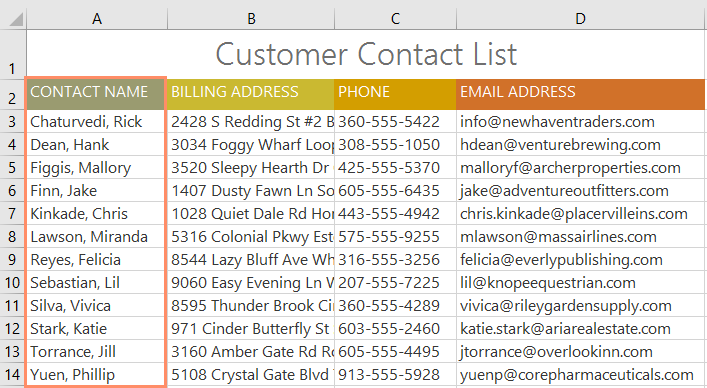
Types of sorting. When sorting data, it's important to first decide if you want the sort to apply to the entire worksheet or just a cell range.. Sort sheet organizes all of the data in your worksheet by one column. Related information across each row is kept together when the sort is applied.
Lesson 19: Sorting Data
Introduction
Types of sorting
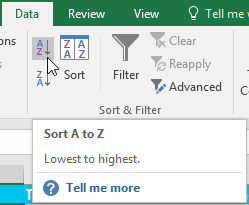
To sort a sheet:
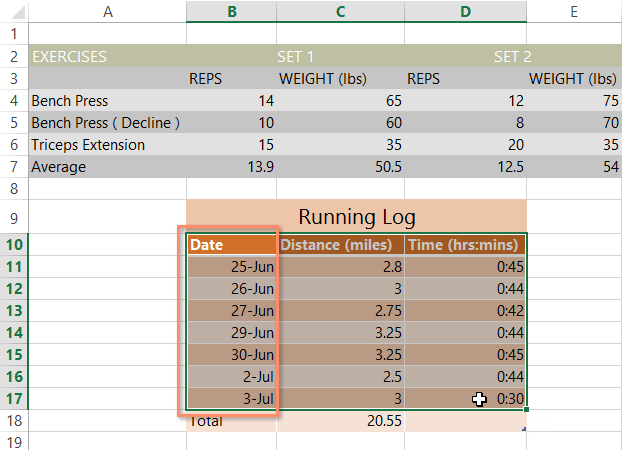
To sort a range:

Custom sorting
To create a custom sort:
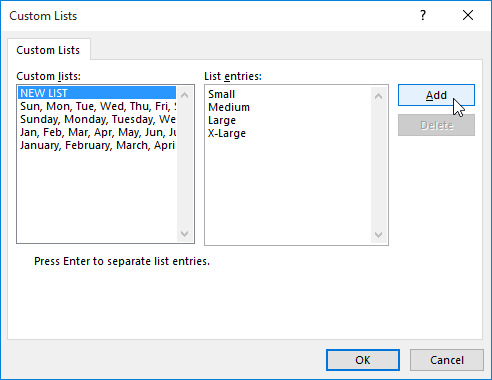
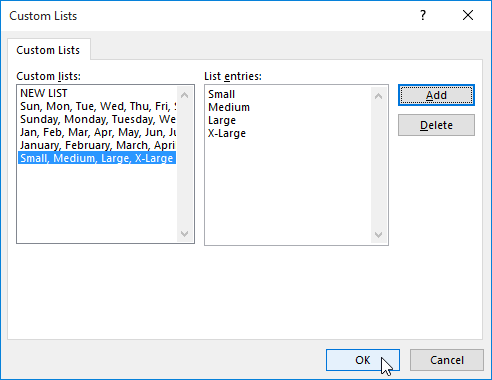
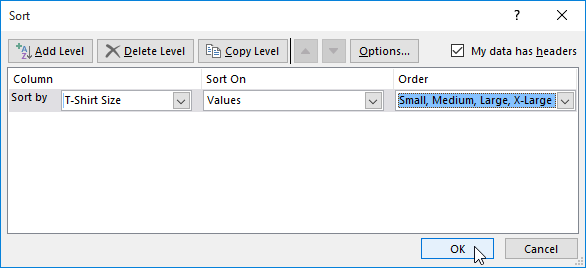
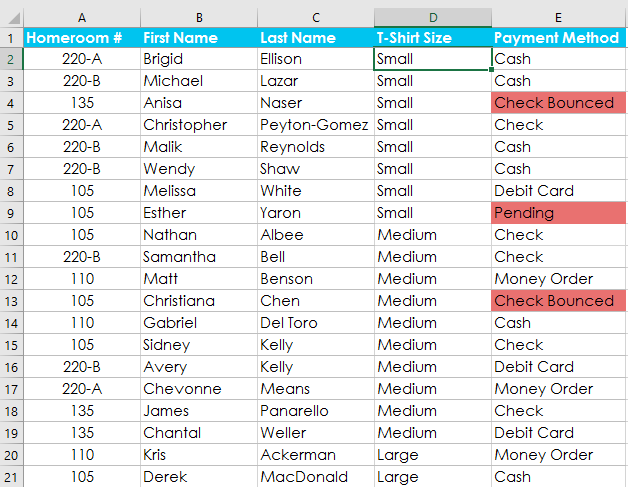
Sorting levels
To add a level:
Challenge!
 Previous: Freezing Panes and View Options
06/09/21 23:06 from Generated feed
10/07/21 04:27 from forma full 5 (ВМС) ряда стран. (ВМС) некоторых других государств. В Великобритании, например, оно присваивается курсантам старшего курса военно-морского колледжа, в США — курсантам военно-морского училища (военно-морской академии).СССР
, морских частей пограничных и внутренних войск. Это постановление действовало до 1972 года. в 1943 году знаками различия мичманов были нарукавные нашивки — четыре полоски узкого золотистого галуна под суконной звездой красного цвета. в Вооруженных Силах СССР, для мичманов были установлены съёмные погоны на пуговице с трапециевидным верхним срезом, с, так называемым, «старшинским молотком»: узкий галун золотистого цвета вдоль продольной оси до пересечения с широким поперечным галуном в верхней трети погона. и знаков различия на них менялась. на шинель и китель (двубортный мундир) без пуговиц с косым верхним срезом, узкий продольный галун был заменён на более широкий. на погонах: поперечный галун был отменён, а продольный достиг верхнего среза. (на кораблях, судах, в береговых частях боевого обеспечения ВМФ ) и морских частей пограничных и внутренних войск. По своему служебному положению, обязанностям и правам они так же, как и прапорщики, имеют статус, близкий к младшим офицерам, являются их ближайшими помощниками и начальниками для матросов (солдат) и старшин (сержантов) одного с ними корабля (части). мичманов — для них были введены погоны нового образца без просветов, на котором вдоль продольной оси расположены две звёздочки. СССР (на кораблях, судах, в береговых частях боевого обеспечения ВМФ ), а также в морских частях пограничных и внутренних войск было введено воинское звание старший мичман (одновременно с введением в Советской Армии, береговых частях и авиации ВМФ , пограничных и внутренних войсках ВС СССР звания старший прапорщик ), для которого были введены погоны нового образца: без просветов, на которых вдоль продольной оси расположены три звёздочки.Российская Федерация
Российской Федерации по рангу выше главного корабельного старшины и ниже старшего мичмана , который, в свою очередь, ниже младшего лейтенанта.
10/07/21 01:10 from academic2.ru
v
08/09/21 07:34 from Generated feed
Live Screenshot
Hover to expand

No direct hits
Nothing is hosted on this domainNo incoming hits
Nothing talked to this domainDNS recordsRetrieved via DNS ANY query
A
138.201.81.43
(TTL: 3540)
TXT
wmail-verification: 6bc98baf4df82d6f3e56069a4d8488ee
TXT
yandex-verification: 11664def4b78652f
WHOIS for store.academic2.ru
domain:        ACADEMIC2.RU
nserver:       flamingo.ezoicns.com.
nserver:       lionfish.ezoicns.com.
nserver:       starfish.ezoicns.com.
state:         REGISTERED, DELEGATED, VERIFIED
person:        Private Person
registrar:     RU-CENTER-RU
admin-contact: https://www.nic.ru/whois
created:       2019-08-09T01:22:10Z
paid-till:     2022-08-09T01:22:10Z
free-date:     2022-09-09
source:        TCI

Last updated on 2022-06-14T21:51:30Z
11/09/21 17:49 from academic2.ru
Academic2.ru - Academic2 outages, problems and current status. Academic2.ru receives approximately 280 daily, 8 400 monthly and more than 100 800 yearly unique visitors.
In comparison with academic2.ru


07/09/21 16:49 from academic2.ru
Запомнить сайт. Все языки Абхазский Адыгейский Азербайджанский Аймара Айнский язык Акан Албанский Алтайский Английский Арабский Арагонский Армянский Арумынский Астурийский...